

 Jun 04,2026
 By:
By: Introduction
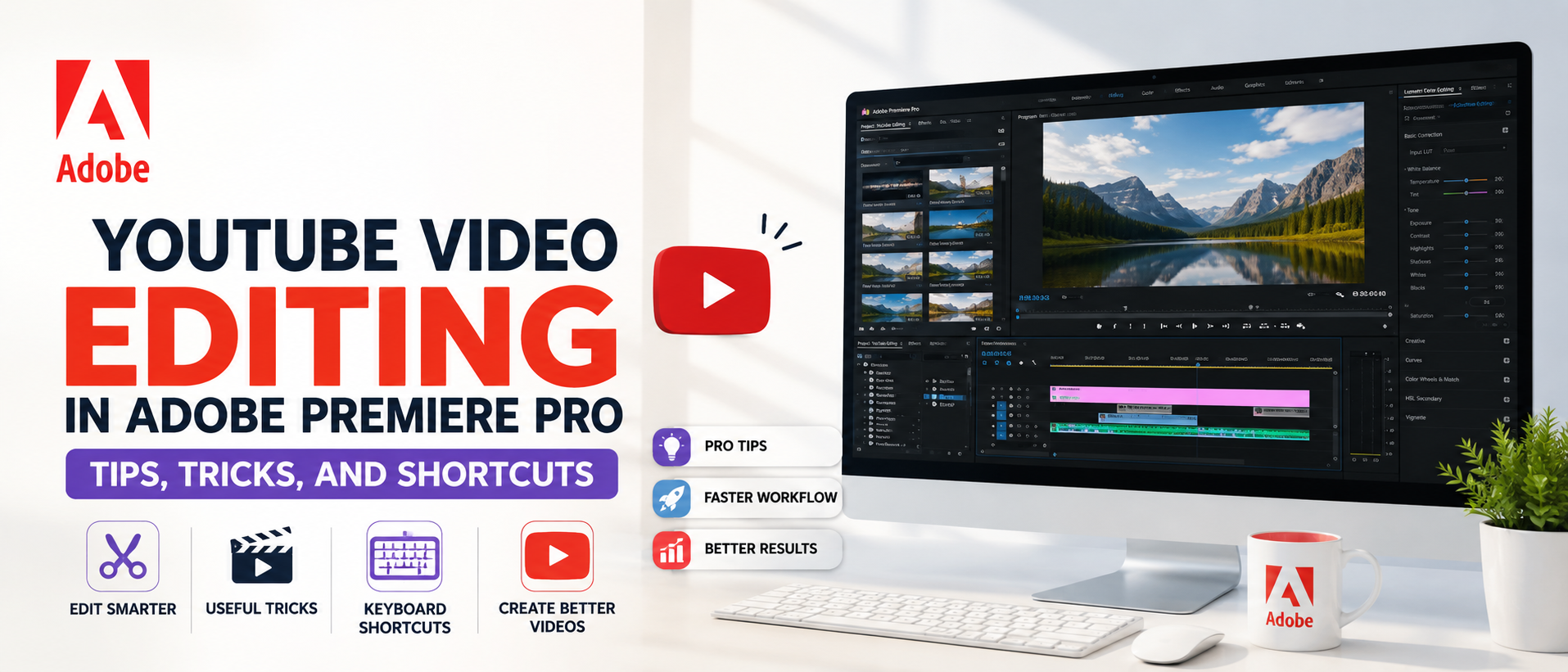
So, you want to edit YouTube videos in Premiere Pro — and not just get by, but actually make something that looks clean, professional, and keeps viewers watching? Good news: Adobe Premiere Pro is honestly one of the best tools out there for creators at every level. Whether you're just getting started or already deep into the workflow, learning how to edit YouTube videos in Premiere Pro the right way makes a real difference. If you're looking to edit YouTube videos Premiere Pro users rely on for professional-quality results, mastering the platform's tools and workflow is essential. This guide covers practical YouTube video editing tips, useful tricks, and the best Premiere Pro shortcuts to speed things up without sacrificing quality.Why Adobe Premiere Pro Is the Go-To Tool for YouTube Creators
Adobe Premiere Pro has built a strong reputation in the video editing world — and for good reason. It supports virtually every video format, integrates seamlessly with other Adobe tools like After Effects and Audition, and gives creators professional-level control over every frame. The timeline is intuitive once you get the hang of it. And for YouTube creators specifically, the export presets are dialled in for web delivery. It is not just software — it is a full production environment that grows with the creator's skill level.Setting Up Your Premiere Pro Project the Right Way
Before touching the timeline, getting the project settings right saves a lot of headaches later. A solid setup is the foundation for any good edit.Here is what to get right from the start:
- Match the sequence settings to the footage — typically 1920×1080 or 3840×2160 at 24, 30, or 60fps depending on the camera.
- Organize media in labelled bins: Raw Footage, B-Roll, Music, Graphics, Exports.
- Enable GPU acceleration under File > Project Settings > General for smoother playback.
- Use Auto Save — set it to every 5 minutes under Preferences > Auto Save.
YouTube Video Editing Tips That Actually Work
Good video editing is not just about cutting clips together — it is about keeping the audience engaged from the first second to the last. The strongest YouTube creators treat every edit as a storytelling decision. Jump cuts, pacing, music timing, color grading — every element works together. Applying smart YouTube video editing tips consistently builds a signature style that audiences start to recognize. The small details add up fast, and viewers notice more than most creators think.Trim Dead Space Aggressively
Dead space is the silent killer of YouTube watch time. Long pauses, filler words, or awkward transitions between thoughts — cut them without hesitation. Use the Ripple Edit tool (shortcut: B) to trim clips and automatically close the gap. The goal is to keep energy high. Audiences are used to fast-paced content now, and even a two-second pause where nothing happens can cause someone to click away. Aggressive trimming feels weird at first, but the final result always feels sharper and more polished.Use J-Cuts and L-Cuts for Smooth Transitions
J-cuts and L-cuts are two of the most effective — and underused — video editing tricks for YouTube. A J-cut lets the audio from the next clip start before the visual cuts, creating a smooth pull into the next scene. An L-cut does the opposite: the video cuts while the previous audio continues underneath. Both techniques eliminate the choppy, abrupt feeling of hard cuts and make the video feel more professionally crafted. Once these become part of your editing workflow, the overall flow of a video changes completely.Color Grading With Lumetri Color
Adobe Premiere Pro's built-in Lumetri Color panel is a powerful color-grading tool. Start with the Basic Correction panel to fix exposure, white balance, and contrast. Then use the Creative tab to apply a look or LUT for consistent color across the video. For YouTube specifically, keeping colors vibrant but natural tends to perform well in thumbnails and in feed previews. Avoid over-processing — heavy filters age quickly. A subtle, clean grade looks great across all device types and keeps the focus on the content itself.A Quick Premiere Pro Tutorial: Building the Edit
This quick Premiere Pro tutorial walks through a basic but solid editing workflow that works well for most YouTube content formats:- Import footage with Ctrl+I (Cmd+I on Mac) and organize it into bins.
- Create a new sequence from the first clip by dragging it to the New Item icon in the Project panel.
- Use the Razor tool (C) to make cuts, then delete unwanted sections with the Delete key.
- Add transitions from the Effects panel — keep them simple; a standard cut or a quick cross-dissolve works best for YouTube.
- Drop music on a lower audio track, set it to around -20dB to -25dB so it does not overpower the voice.
- Use the Essential Graphics panel to add lower thirds, titles, and end screen elements.
- Export with H.264 codec using the YouTube 1080p or 4K preset under File > Export > Media.
Premiere Pro Shortcuts Every YouTube Editor Needs
Premiere Pro shortcuts are one of the fastest ways to speed up the editing process. Here are the most useful ones to memorize first:- V — Selection tool (the default, always go back to this)
- C — Razor / Cut tool
- B — Ripple Edit tool (trims and closes gaps automatically)
- Ctrl+Z / Cmd+Z — Undo
- Ctrl+M / Cmd+M — Open Export dialog
- Shift+Delete — Ripple Delete (removes clip and closes gap)
- L / J / K — Shuttle controls: L plays forward, J plays backwards, K pauses
- I / O — Mark In and Out points on a clip
- Ctrl+Shift+D — Apply default audio transition
- Ctrl+D — Apply default video transition
- Tilde (~) — Maximize panel under cursor (great for focusing on timeline)
- Ctrl+K — Razor cut at playhead position
Video Editing Tricks to Upgrade the Final Result
Beyond the basics, these video editing tricks give videos a more professional feel:- Nest Sequences: Group related clips into a nested sequence to apply effects or color grades to them all at once.
- Use Adjustment Layers: Place an adjustment layer above all clips on the timeline and apply color grades or effects globally without touching individual clips.
- Speed Ramping: Right-click a clip > Show Clip Keyframes > Time Remapping > Speed to create smooth speed ramps for dramatic moments.
- Pancake Timeline: Open two sequences side by side — one for the rough-cut source, one for the working edit — to drag and drop sections quickly.
- Proxy Workflow: For 4K footage on a slower machine, create proxy files (low-res versions) for editing, then relink to the original files on export.
Video Editing Tips for Better Audio on YouTube
Viewers will tolerate mediocre visuals, but bad audio makes people leave fast. Adobe Premiere Pro connects directly with Adobe Audition for deep audio repair work, but plenty can be done right in Premiere. The Essential Sound panel is a hidden gem — tag clips as Dialogue, Music, or Ambience and it auto-applies smart EQ and compression presets. Enable loudness auto-match to keep the overall volume consistent. Always run DeNoise on voice tracks recorded in anything less than a treated studio environment.Final Thoughts: Edit YouTube Videos in Premiere Pro Like a Pro
Learning to edit YouTube videos in Premiere Pro takes time — but every shortcut learned, every trick applied, and every tip put into practice compounds over time. Adobe Premiere Pro gives creators all the tools needed to build something genuinely great: tight edits, beautiful color grades, clean audio, and a workflow that scales. The software keeps improving with every update, offering creators more flexibility and creative possibilities. Start with the fundamentals, build the muscle memory with those shortcuts, and the quality of every video will keep improving. The best edit is the one that feels effortless to watch.Improve Your Editing Workflow.
Read More Blogs
Adobe Acrobat Vs Adobe Acrobat Pro: Complete Comparison Guide For 2026
Adobe Creative Cloud Pricing 2026: The Smartest Plan For Every Budget
Hostinger Review 2026: Speed, Security, Pricing, And Features Tested
FAQs
Q1. Is Adobe Premiere Pro good for editing YouTube videos?Yes, Adobe Premiere Pro is one of the best tools for YouTube editing — it offers professional-grade features, a smooth workflow, and YouTube-ready export presets all in one place.
Q2. What is the fastest way to learn Premiere Pro shortcuts?
The fastest way is to practice the most-used shortcuts like V, C, B, and Ctrl+M daily while editing, and Adobe's own tutorials on adobe.com are a great free resource to get started.
Q3. Can beginners use Adobe Premiere Pro for YouTube videos?
Absolutely — Adobe Premiere Pro is beginner-friendly with its intuitive timeline, built-in templates in the Essential Graphics panel, and step-by-step guidance available directly through Adobe's learning resources.